
How to Backup WhatsApp chats in iPhone?

Table of Contents
Introduction
“iCloud Storage Full” appears on your iPhone, you dismiss it, and WhatsApp quietly stops backing up. Weeks later you switch phones and the newest chat you can restore is from last spring. If you are searching how to backup WhatsApp chats in iPhone, that silent failure is the thing to prevent, and it takes about five minutes.
The quick answer: open WhatsApp, go to Settings > Chats > Chat Backup and tap Back Up Now. Your messages and media are saved to iCloud. Set Auto Backup to daily, weekly or monthly so it keeps running without you.
That works only when iCloud Drive is switched on and your iCloud account has free space. If iCloud is full, you have two other routes: a full iPhone backup to a computer, or an export of the chats you care about. This guide covers all three ways to backup WhatsApp chat in iPhone, plus restore, export and the fixes for a stuck backup.
Install the WA Chat Backup extension to save iPhone chats to your computer through WhatsApp Web.
Method 1: Backup WhatsApp Chats in iPhone Using iCloud

Step 1: Open WhatsApp Settings
Go to WhatsApp > Settings on your iPhone.
Step 2: Tap on Chats > Chat Backup
Select Chats, then choose Chat Backup to open backup settings.
Step 3: Tap Back Up Now
Tap Back Up Now to create an instant backup of your WhatsApp chats and media.
Step 4: Enable Auto Backup
Set Auto Backup to daily, weekly or monthly. Turn Include Videos off if you are short on space.
Step 5: Check iCloud Settings
Open iPhone Settings > [Your Name] > iCloud, confirm iCloud Drive is on, and confirm WhatsApp is allowed to use iCloud.
Step 6: Encrypt the iCloud WhatsApp Backup
In Chat Backup, open End-to-end Encrypted Backup and tap Turn On. Since late 2025 you can secure it with a passkey (Face ID, Touch ID or your passcode) instead of a password or 64-digit key. Without this step, the backup is not end-to-end encrypted. See WhatsApp’s backup instructions for the current screens.
Pros of Using iCloud for WhatsApp Backup
- No Computer Needed: Back up anytime from the iPhone itself.
- Auto Backup Support: Daily, weekly or monthly, with no manual steps.
- Direct Restore: WhatsApp restores from iCloud during setup on any iPhone.
Cons of Using iCloud for WhatsApp Backup
- Limited Free Storage: The free 5 GB is shared with photos, device backups and every other app.
- No Selective Restore: You restore the whole backup or nothing.
- iPhone Only: An iCloud backup cannot be restored on Android.
Pro Tip: If the backup fails for lack of space, turn off Include Videos and try again. Videos are usually the largest part of the backup. |
|---|
Method 2: Backup WhatsApp Chats in iPhone Using iTunes or Finder

A full iPhone backup to a computer includes WhatsApp data and uses no iCloud space. On a Mac, use Finder. On Windows, use the Apple Devices app or iTunes.
Step 1: Connect iPhone to Computer
Use a USB cable and tap Trust on the iPhone.
Step 2: Open Finder or iTunes and Select Device
Click your iPhone in the Finder sidebar, or the phone icon in iTunes.
Step 3: Choose This Computer under Backups
Select the option that backs up all iPhone data to this computer. Tick the encrypt option to protect the file with a password.
Step 4: Click Back Up Now
Wait for the backup to finish before unplugging.
Step 5: Verify the Backup
Check the date under the last backup line to confirm it completed.
Pros of Using iTunes or Finder for WhatsApp Backup
- No Cloud Limits: The only limit is your computer’s disk.
- No Internet Required: Backup and restore both work offline.
Cons of Using iTunes or Finder for WhatsApp Backup
- All or Nothing: Restoring it replaces everything on the iPhone, not only WhatsApp.
- Manual Every Time: There is no schedule, and you need the computer.
Method 3: Backup WhatsApp Chats in iPhone Using Third-Party Apps
Desktop tools such as iMazing, Dr.Fone and MobileTrans read WhatsApp data from the iPhone over USB. Install the tool, connect the iPhone, open its WhatsApp section, pick what to save, and store the result on your computer.
Pros of Using Third-Party Apps for WhatsApp Backup
- Selective Backup: Save specific chats or files.
- Readable Exports: Many export to PDF, HTML or CSV.
Cons of Using Third-Party Apps for WhatsApp Backup
- Mostly Paid: Free versions are limited.
- Trust: You are giving software full access to your chats, so use well-known vendors only.
How to Restore WhatsApp Backup on iPhone?

You restore a WhatsApp backup in iPhone during setup, not from a menu inside the app. That means reinstalling WhatsApp or setting it up on a new phone.
Step 1: Verify iCloud Backup Availability
Go to WhatsApp Settings > Chats > Chat Backup and check the date and size of the last backup.
Step 2: Uninstall and Reinstall WhatsApp
Delete WhatsApp, then install it again from the App Store. On a new iPhone, just install it.
Step 3: Verify Your Phone Number
Use the same phone number and the same Apple ID that made the backup.
Step 4: Tap on “Restore Chat History”
WhatsApp finds the iCloud backup and offers to restore it. If the backup is end-to-end encrypted, confirm with your passkey, password or 64-digit key.
Step 5: Complete Setup and Verify Data
Chats appear first. Photos and videos keep downloading in the background, so stay on Wi-Fi.
Backup & Export Your WhatsApp Chats with Ease
Save conversations by message count or date range, export chats with media.

How to Export WhatsApp Chats on iPhone?
Export Chat saves one conversation as a readable file. It is not a backup WhatsApp can restore, but it is the fastest way to keep a single chat outside the app.
Step 1: Open WhatsApp on Your iPhone
Open the account that holds the chat you want.
Step 2: Select the Chat to Export
Open the chat and tap the contact or group name at the top.
Step 3: Choose Export Chat Option
Scroll down, tap Export Chat, then choose Attach Media or Without Media.
Step 4: Select Export Method
Send the file to Mail, AirDrop or Files. The chat arrives as a text file, with media alongside it if you included it.
Step 5: Save or Send the File
Store it in iCloud Drive or on your computer. Very long chats are cut off by WhatsApp’s export limit, so use a date range export for those
Why You Should Backup WhatsApp Chats in iPhone?
WhatsApp keeps your chat history on the phone itself, not on its servers. If the iPhone is lost, reset or replaced and no backup exists, the history is gone. A current backup covers five situations.
1. Prevent Data Loss During iPhone Reset
A factory reset wipes WhatsApp along with everything else. A backup taken minutes before the reset brings every chat back.
2. Easy Transfer to New iPhone
Sign in on the new iPhone with the same number and Apple ID, tap Restore Chat History, and your WhatsApp backup on iPhone moves across.
3. Recover Deleted Messages
If you delete a chat by mistake, reinstalling WhatsApp and restoring the last backup returns it, as long as the backup is older than the deletion.
4. Save Important Media and Docs
Photos, voice notes, invoices and PDFs shared in chats are included. Videos are included when the Include Videos toggle is on.
5. Cloud-Based Storage with iCloud
An iCloud WhatsApp backup sits off the device, so damage to the phone does not touch it.
Tips to Backup WhatsApp Chats in iPhone
Most failed backups come down to five checks.
1. Ensure iCloud Is Enabled
Go to iPhone Settings > [Your Name] > iCloud, turn on iCloud Drive, and allow WhatsApp in the list of apps.
2. Check iCloud Storage Space
Compare the backup size shown in Chat Backup with your free iCloud space. Free up space or upgrade the plan if it does not fit.
3. Connect to Stable Wi-Fi
Large backups stall on weak connections. If you have no Wi-Fi, turn on the cellular backup toggle in Chat Backup and watch your data use.
4. Update to the Latest iOS and WhatsApp Version
Newer backup features, including passkey encryption, need a current version of the app.
5. Manually Backup Before Reset or Transfer
Tap Back Up Now right before you switch iPhones or erase the device. Do not rely on last night’s automatic backup.
Bonus Tip: Back Up WhatsApp Chats using WA Chat Backup Extension
Step 1: Open WhatsApp Web & Launch WA Chat Backup
Log in to WhatsApp Web using the QR code. Search for wa-chat-backup.com. Click the Install for Free Button. Once installed, pin the extension.
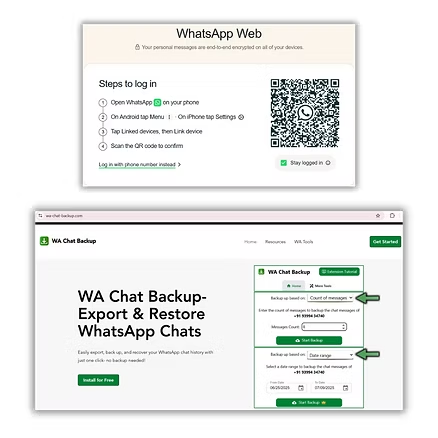
Step 2: Start using WA Chat Backup Tool
Open WhatsApp Web, tap on the Extension icon. In the Home Section of Tool, you’ll see the dropdown labeled “Backup up based on:”
Select your preferred option: 1] Count of messages. 2] Date range.
Option A: Backup by Message Count
Image: existing Option A screenshot
- Choose “Count of messages” from the dropdown.
- Enter how many messages to back up (e.g., 8, 10, etc.).
- Free users: Backup up to 10 recent messages
- Premium users: Backup unlimited messages
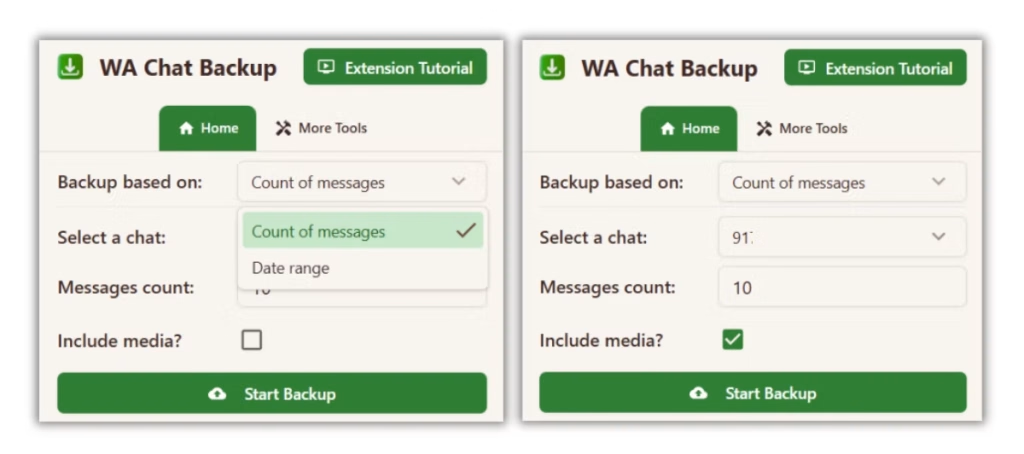
Option B: Backup by Date Range
Image: existing Option B screenshot
- Select “Date range” from the dropdown.
- Pick your start and end dates.
- Click Start Backup. Chats within that date range will be exported.
- Date range backup is available for premium users only.

Conclusion
To backup WhatsApp chats in iPhone, turn on iCloud backup with Auto Backup, switch on end-to-end encryption, and tap Back Up Now before any reset or phone change. Keep a computer backup or an export as a second copy for the chats you cannot afford to lose.
The backup that saves you is the one made yesterday, not the one you meant to set up.
FAQ
How can I backup WhatsApp on iPhone without iCloud?
You have three options. Make a full iPhone backup to a computer with Finder or iTunes, which includes WhatsApp. Use Export Chat inside WhatsApp for single conversations. Or link the iPhone to WhatsApp Web and export chats to your computer with WA Chat Backup.
Can I backup WhatsApp chat in iPhone to Google Drive?
Not directly. WhatsApp on iPhone backs up to iCloud only, and there is no setting to choose Google Drive. You can export chats as files and upload those files to Google Drive, but WhatsApp cannot restore from them.
How do I take a WhatsApp backup from Android to iPhone?
Use Apple’s Move to iOS app on the Android phone while setting up the iPhone. The iPhone must be new or factory reset, and you must keep the same phone number. Select WhatsApp on the Transfer Data screen, finish setup, then open WhatsApp on the iPhone and tap Start. WhatsApp lists the full requirements here. Afterwards, tap Back Up Now so the chats are saved to iCloud.
Why is my WhatsApp backup stuck on iPhone?
The usual causes are a full iCloud account, a weak Wi-Fi connection, or a very large video library. Free up iCloud space, turn off Include Videos, update WhatsApp, restart the iPhone and tap Back Up Now again.
Where is WhatsApp backup stored in iPhone?
It is stored in your iCloud account as hidden app data. You will not see it in the Files app or on iCloud.com. To check its size, open iPhone Settings > [Your Name] > iCloud > Manage Storage and look for WhatsApp.
How do I move WhatsApp chats to a new iPhone?
Restore the iCloud backup during WhatsApp setup on the new iPhone, using the same number and Apple ID. Or skip iCloud: on the old iPhone go to Settings > Chats > Transfer Chats to iPhone, then scan the QR code shown on the new iPhone. Keep both phones close together and on the same Wi-Fi.